EasyApp

Installation Guide

How to set up EasyApp in your development environment.

Prerequisites

Before you begin, ensure you have the following requirements met:

  • macOS: 15.0 Sequoia or later
  • Xcode: 16.4 or later
  • Apple Developer Program: Active membership required
  • Github account: Access to the code repository
  • Git: For downloading/cloning the repository
  • iPhone device: For real device testing/debugging, in-app purchase testing must use real device
  • Internet connection: For downloading third-party dependency repositories

Reminder

Xcode 16.1/16.2 versions have issues with pulling SPM dependencies. Even with TUN mode enabled, this problem persists. It is recommended to use Xcode 16.4 or above.

Xcode 16.4 has a simulator WebKit bug. Since EasyApp has built-in WebView functionality, running the App on Xcode 16.4 simulator will cause the program to crash. Two solutions:

1: Temporarily use Xcode 16.3 version for development; or the latest Xcode 26 is also fine.

2: Use real device debugging. Real devices don't have this problem on any version.

2.1: Real device running must log in to your Apple ID, as shown below: addAccount

How to register Apple Developer Account

Reference official documentation: Apple Developer Account Registration

First, when you purchase EasyApp, you will receive an email with access invitations to EasyApp's frontend and backend code repositories. You need to accept these invitations to have permission to access the code repositories. Next, you need to clone the code repositories locally and configure the Xcode project.

Clone Repository

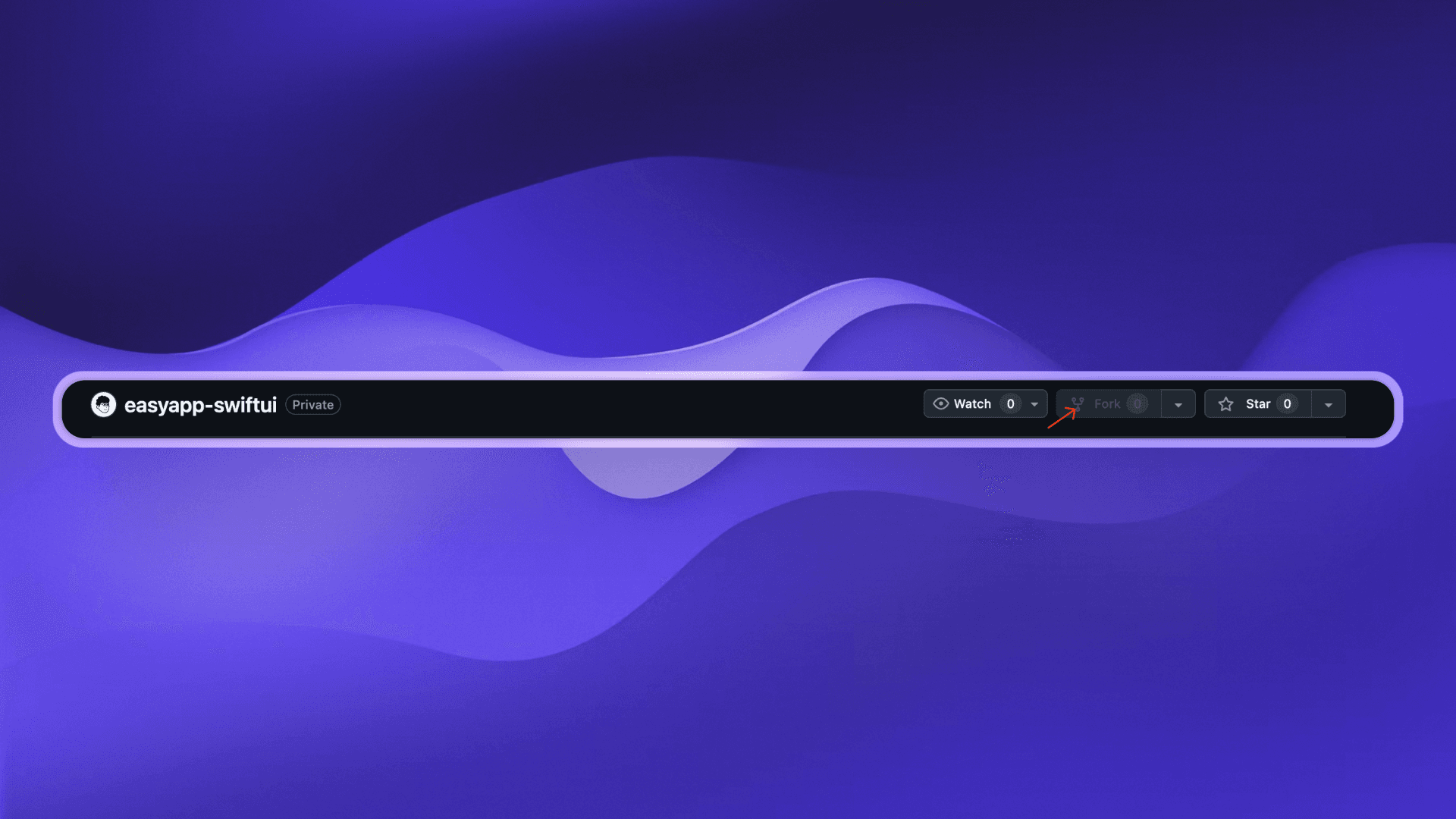
Recommended to fork the repository, then clone the forked repository locally. This way the repository you clone is also private, and you can pull from the main repository to update code at any time.

fork_repo

Then execute the following code according to your cloned repository:

  • Replace your-username with your Github username
  • Replace your-project-name with your project name
git clone https://github.com/your-username/easyapp-swiftui.git your-project-name

You can also directly clone the code repository

  • Replace your-project-name with your project name
git clone https://github.com/FastEasyApp/easyapp-swiftui your-project-name

cd your-project-name

git remote remove origin

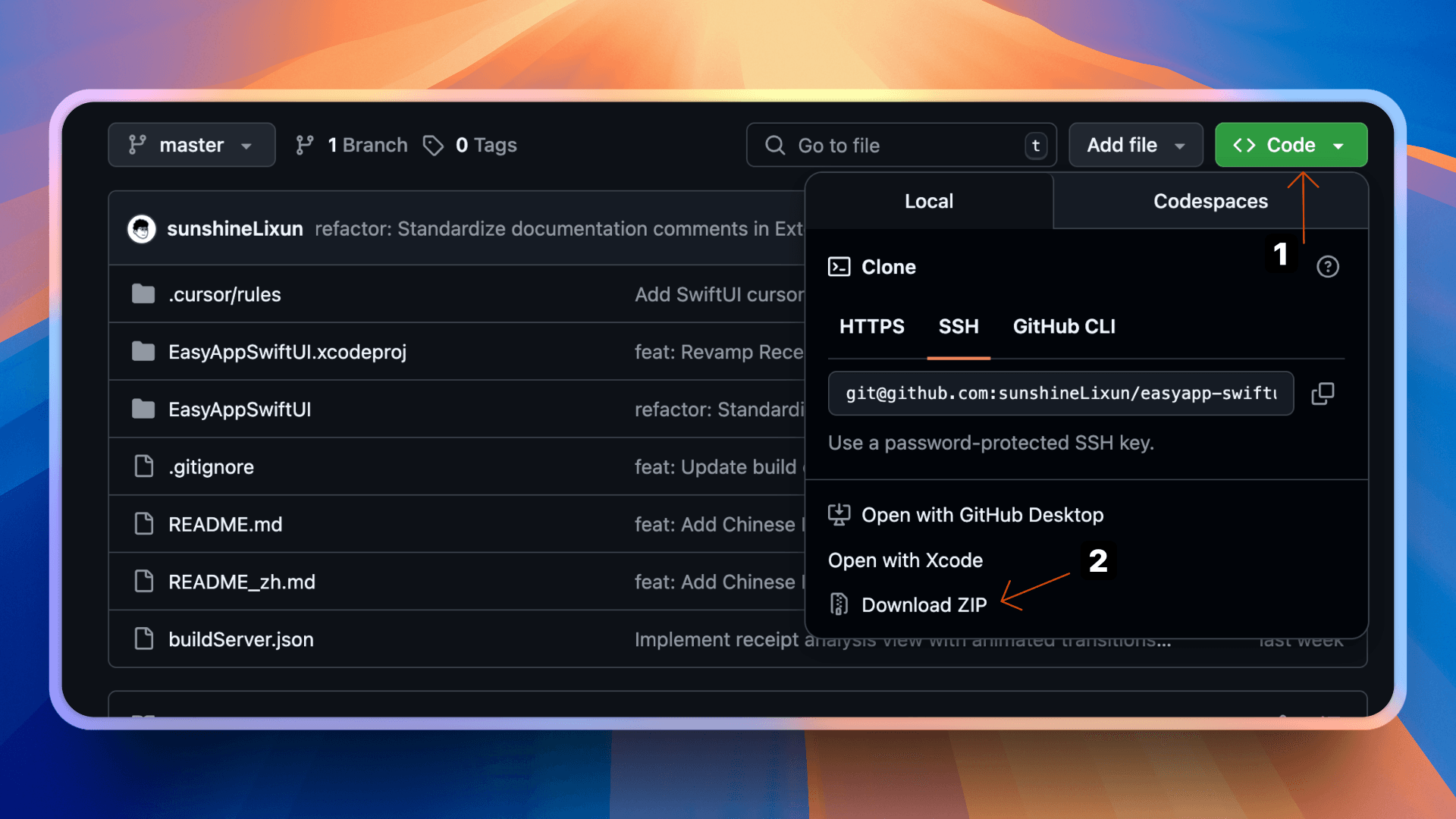
You can also directly download the ZIP file download_zip

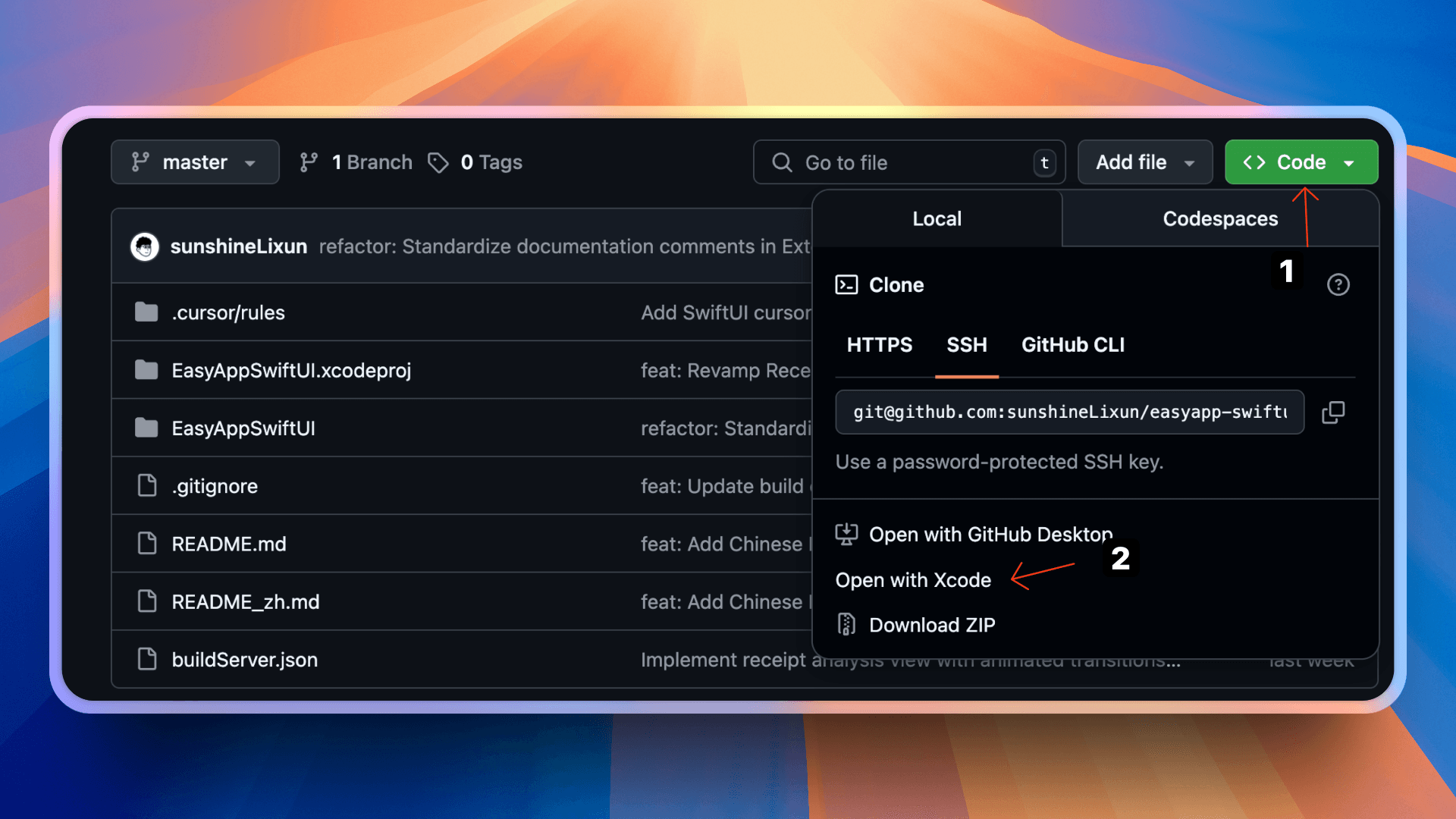
You can also directly open the project with Xcode (need to install Xcode first) open_with_xcode

Configure Xcode

A good network environment is a necessary condition for improving development efficiency

  • For mainland China, installing SPM dependencies requires enabling proxy TUN mode to make normal requests.
  • Or use Proxifier tool to enable proxy. For how to use Proxifier, please search by yourself. Compared to the cumbersome configuration of using Proxifier tool, it is strongly recommended to enable proxy TUN mode.
  • For how to enable proxy TUN mode, please search by yourself.
  • Recommend using Clash Verge tool to enable proxy.

There's another alternative method:

1: Make Xcode use the system's built-in git:

defaults write com.apple.dt.Xcode IDEPackageSupportUseBuiltinSCM YES

2: Then set global proxy for git or set terminal proxy, Xcode will use the proxy.

git config --global http.https://github.com.proxy {yourproxy} && git config --global https.https://github.com.proxy {yourproxy}

Replace yourproxy with your proxy, usually http://127.0.0.1:7897, the port may be different.

3: Check git proxy

 git config --list --global
http.https://github.com.proxy=http://127.0.0.1:7897
https.https://github.com.proxy=http://127.0.0.1:7897

4: After setting up, you need to re-pull dependencies

There are 2 methods:

1: Close Xcode and reopen it, it will automatically re-pull dependencies

2: Right-click Package Dependencies, click Reset Package Caches, it will automatically re-pull dependencies

resetSPM

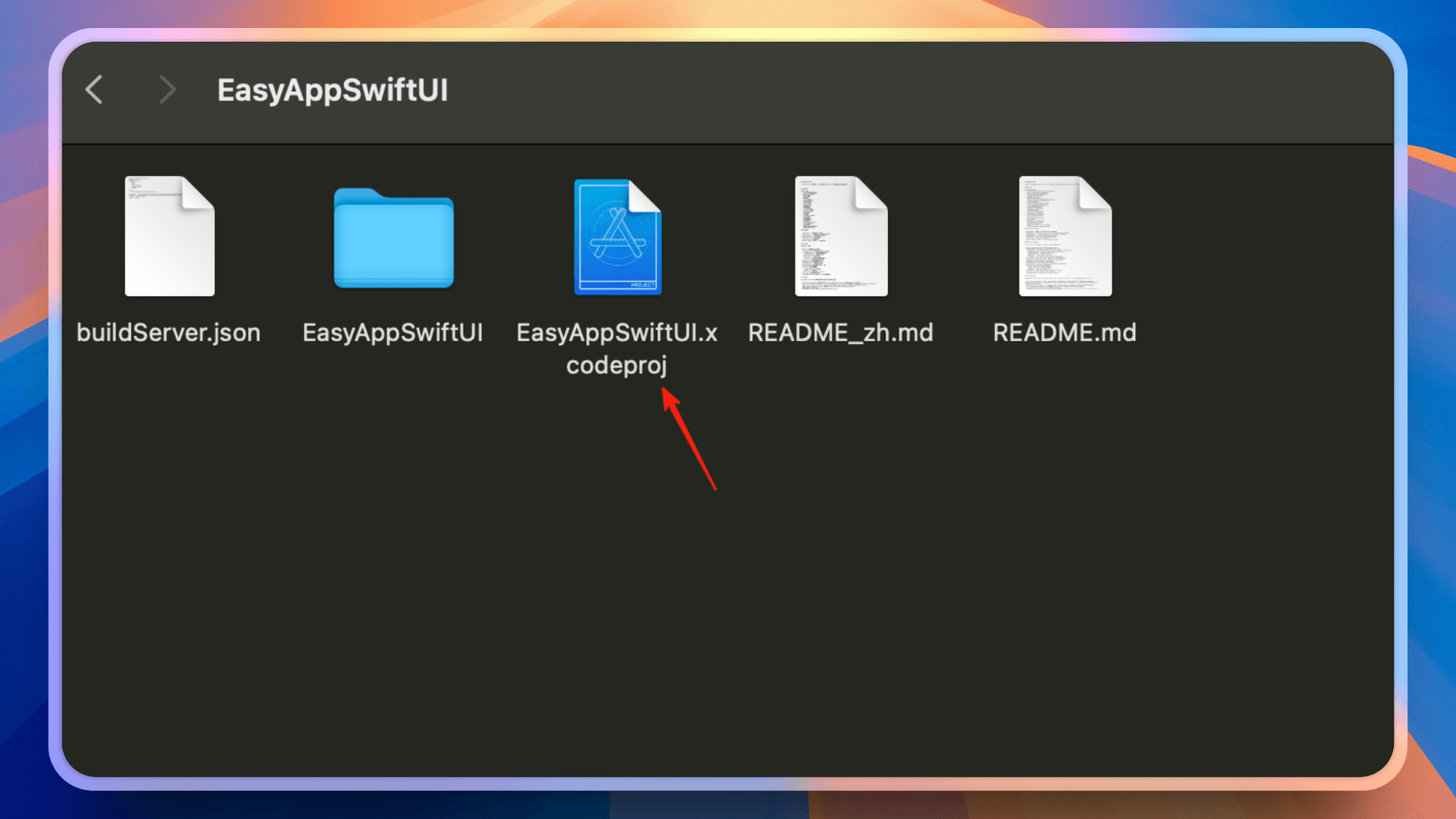
1. Open project in Xcode:

Go to your cloned code repository, double-click the EasyAppSwiftUI.xcodeproj file to open the project.

open_xcode_project

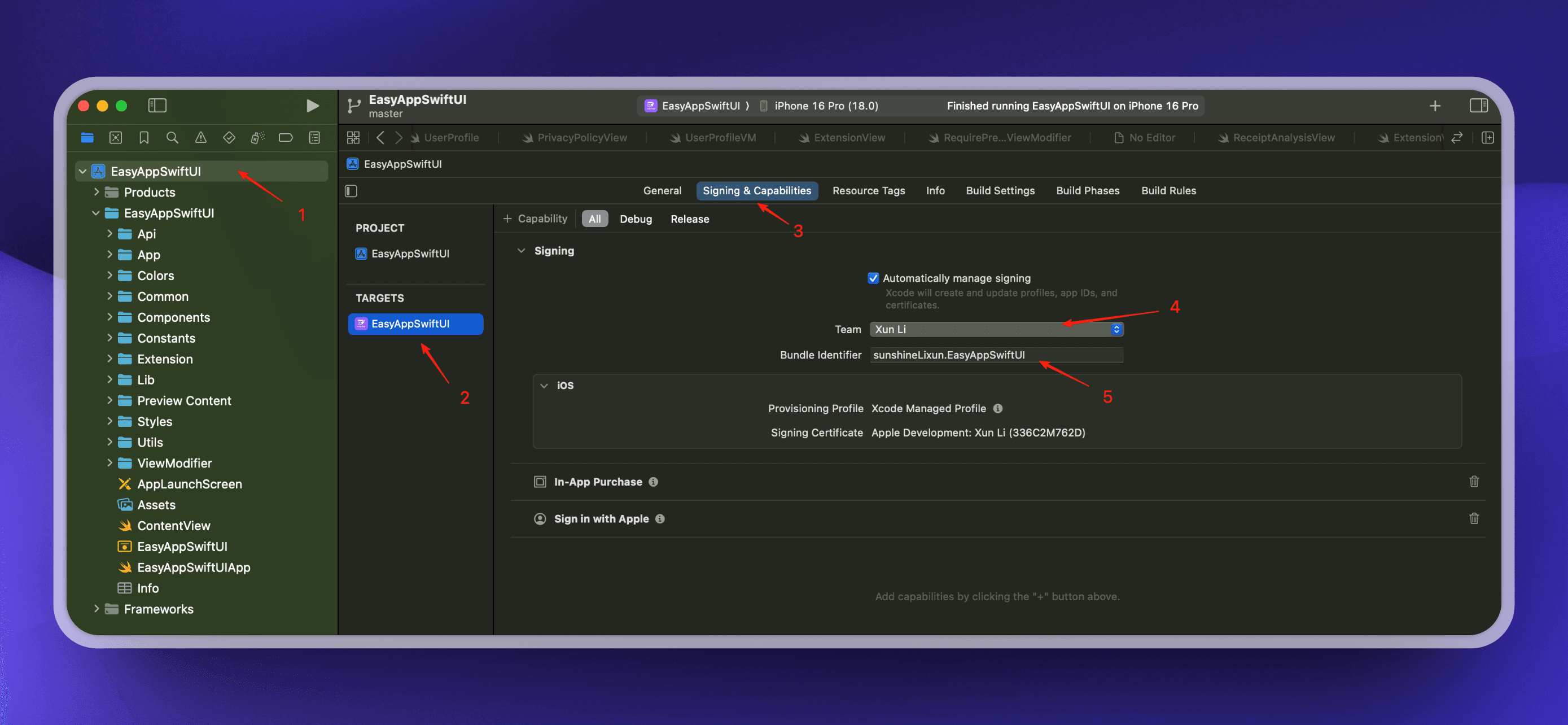
2. Select development team (as shown below):

  • In Xcode, select the project file (steps 1 and 2)
  • Go to "Signing & Capabilities" (step 3)
  • Select your Apple developer team (step 4)

If you haven't registered an Apple developer account yet, please refer to the official documentation to register. This is mandatory, otherwise you won't be able to proceed with subsequent development work.

3. Update Bundle Identifier:

  • Change bundle identifier to match your developer account (step 5)
  • Example: com.yourcompany.easyappswiftui

edit_project_name

Reminder

Be sure to update your Bundle Identifier. Each App's Bundle Identifier is unique. You'll need to use this Bundle Identifier to configure various services later: Supabase, RevenueCat, Apple Sign-In, etc. editBId

When you update the Bundle Identifier, Xcode will automatically update your Profile file and sync it to the Apple Developer website.

The template enables desktop widgets, lock screen widgets, and Dynamic Island functionality by default. Since you modified the main App's Bundle Identifier, you also need to modify the Widget and push notification's Bundle Identifier.

Reminder

If you temporarily don't need widget and notification features, you can refer to this documentation to delete related configurations and code. After deletion, if the program has no errors, you can directly skip this step. Then run the App and proceed with subsequent project renaming operations.

Their relationship is as follows:

When your iOS app contains any of the following components, Apple requires that the Bundle ID of these components must be prefixed with the main app's Bundle ID:

  • App Extensions (application extensions, such as Today Widget, Share Extension, etc.)

  • WatchKit App (Apple Watch app)

  • App Clips

  • Other embedded frameworks and binaries

Example:

Correct configuration:

  • Main app: com.example.myapp

  • Extension: com.example.myapp.share-extension βœ…

  • Widget: com.example.myapp.widget βœ…

Incorrect configuration:

  • Main app: com.example.myapp

  • Extension: com.example.share-extension ❌ (missing myapp. prefix)

  • Widget: com.anothercompany.widget ❌ (completely different prefix)

Clean and rebuild:

Xcode menu bar -> Product β†’ Clean Build Folder

Or shortcut: (Shift + Cmd + K)

Rebuild the project

Specific steps are as follows:

  1. Modify Widget's Bundle Identifier

edit-widget The format must be modified according to the main App's Bundle Identifier + .widget,

Example:

  • Main app: com.example.myapp

  • Widget: com.example.myapp.widget βœ…

When you update the Widget's Bundle Identifier, Xcode will automatically update your Profile file and sync it to the Apple Developer website.

Next, modify the kind in the EasyAppWidgetControl file, as shown below. This value is the Widget's Bundle Identifier you just modified. widget-kind

  1. Add App Group identifier

Desktop widgets and the main App share data through App Group identifier. They share data through the App Group identifier. Let's go to the main App: widget-app-groups

Click the + button, enter your App Group identifier, recommended format: group. + widget's Bundle Identifier. For example: group.com.yourcompany.easyappswiftui.widget.

After setting your App Group identifier, please uncheck the template's built-in App Group identifier. As shown below, since you have configured your exclusive App Group identifier, the template's built-in App Group identifier is no longer necessary.

remove-app-groups

  1. After configuring the main App, let's go to the Widget:

edit-widget-app-groups

The Widget's App Group will automatically pull the main App's App Group identifier. Just select it. If it's not pulled, you can click the refresh button next to it to pull again.

The template comes with push notification functionality. Push notifications are similar to widgets overall, first configure Bundle Identifier, then configure App Group.

  1. Modify push notification's Bundle Identifier, as shown below: noti-app-groups

The format must be modified according to the main App's Bundle Identifier + .EasyAppSwiftUINotificationServiceExtension, Example:

  • Main app: com.example.myapp

  • Push notification: com.example.myapp.EasyAppSwiftUINotificationServiceExtension βœ…

    1. Add App Group identifier

Similarly, go to the main App:

widget-app-groups

Click +, enter your App Group identifier, recommended format: group. + push notification's Bundle Identifier. For example: group.com.yourcompany.easyappswiftui.EasyAppSwiftUINotificationServiceExtension.

After setting your App Group identifier, please uncheck the template's built-in App Group identifier. As shown below, since you have configured your exclusive App Group identifier, the template's built-in App Group identifier is no longer necessary.

remove-app-groups

  1. After configuring the main App, let's go to push notifications:

edit-noti-app-groups

The push notification's App Group will automatically pull the main App's App Group identifier. Just select it. If it's not pulled, you can click the refresh button next to it to pull again.

Run App

  • Execute Command + R to run the App.
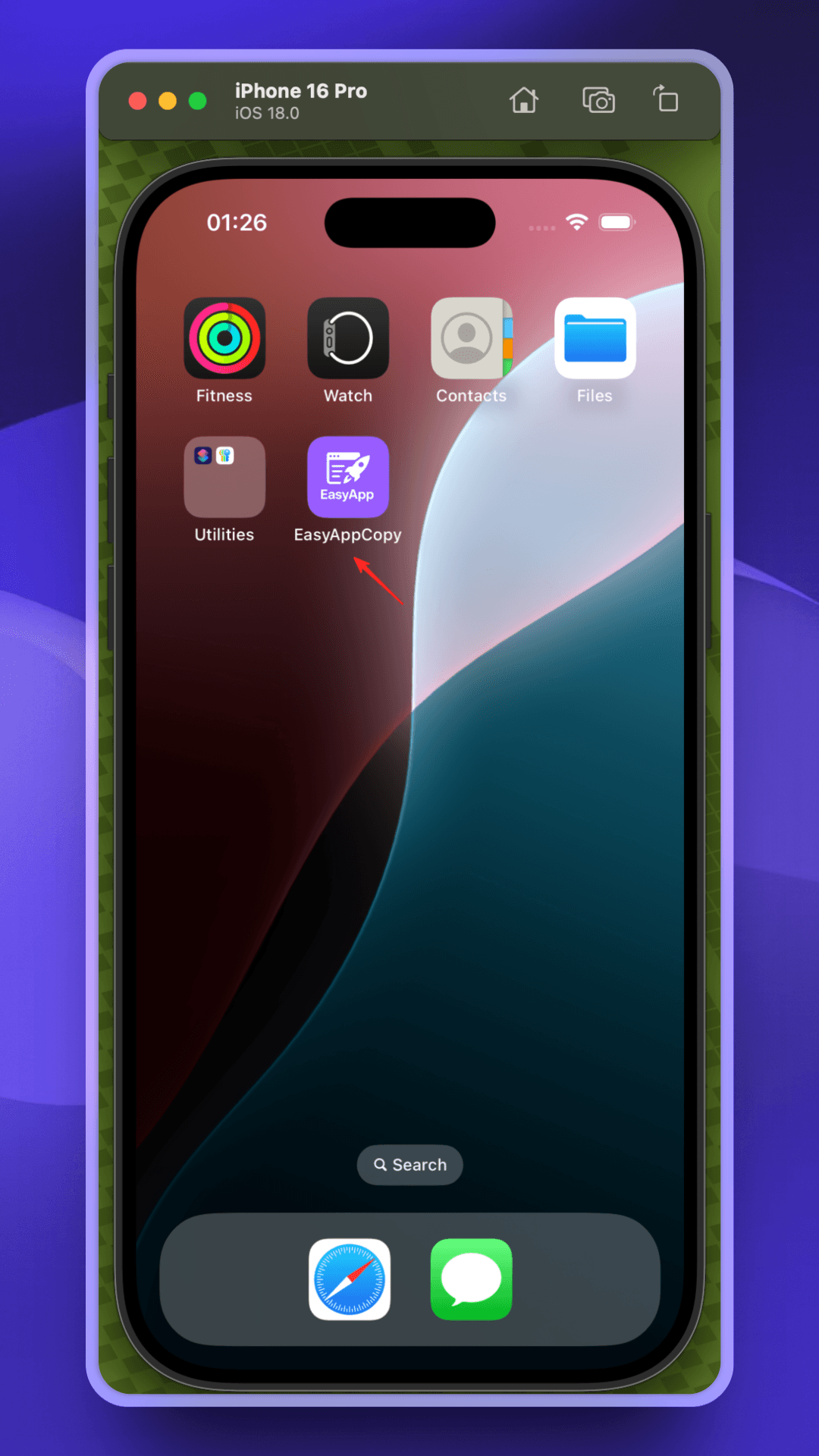
  • At this point you should see the App has been installed on the desktop and the App name has been changed to EasyAppCopy.

desktop

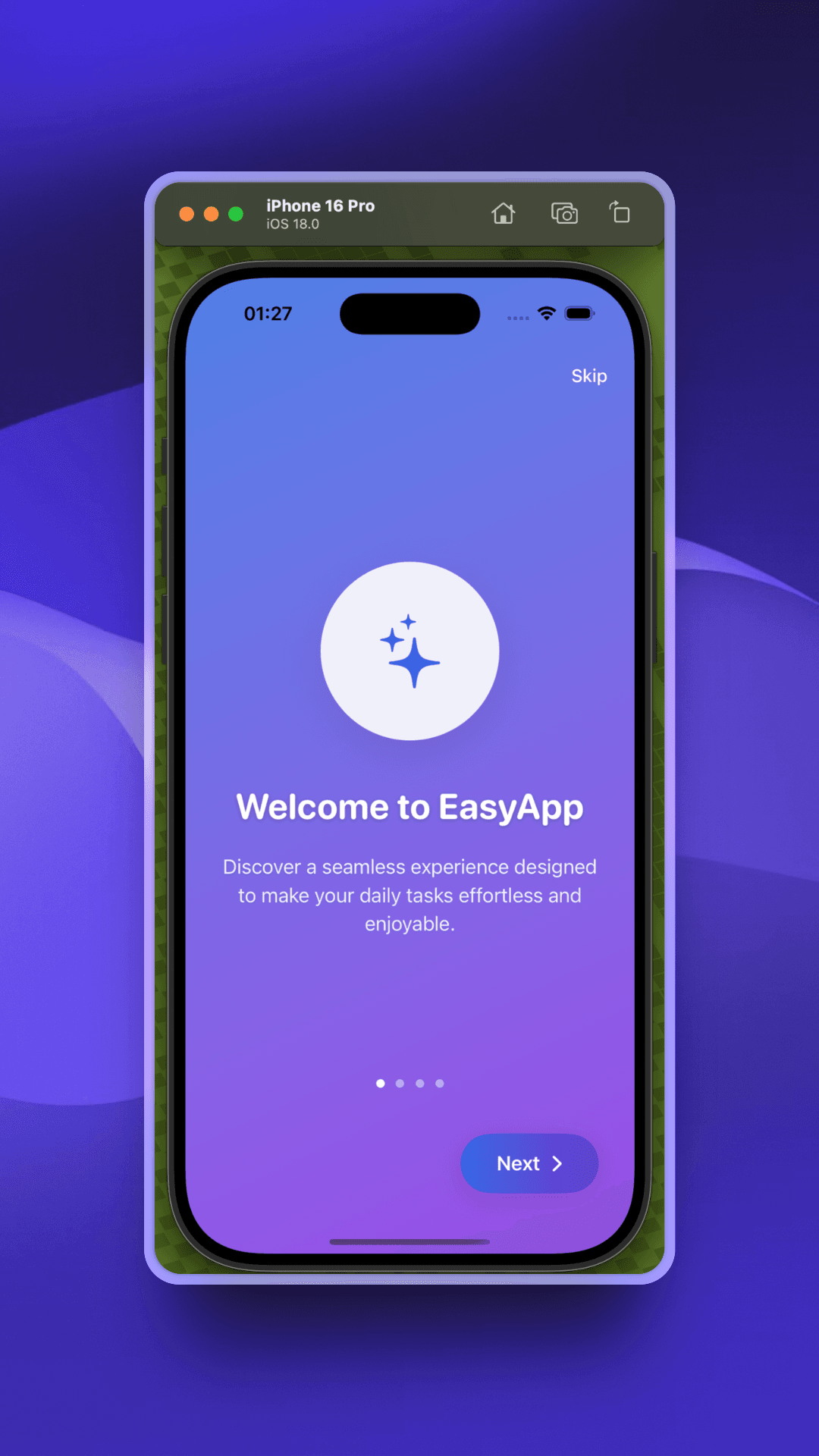
  • Next, you'll enter the onboarding flow. Congratulations, you have successfully run EasyApp πŸŽ‰πŸŽ‰πŸŽ‰πŸŽ‰πŸŽ‰

first_lanuch

Rename Project (this step is optional)

  • Since this only modifies the project name, not the App name. If you don't care, you can skip this step.
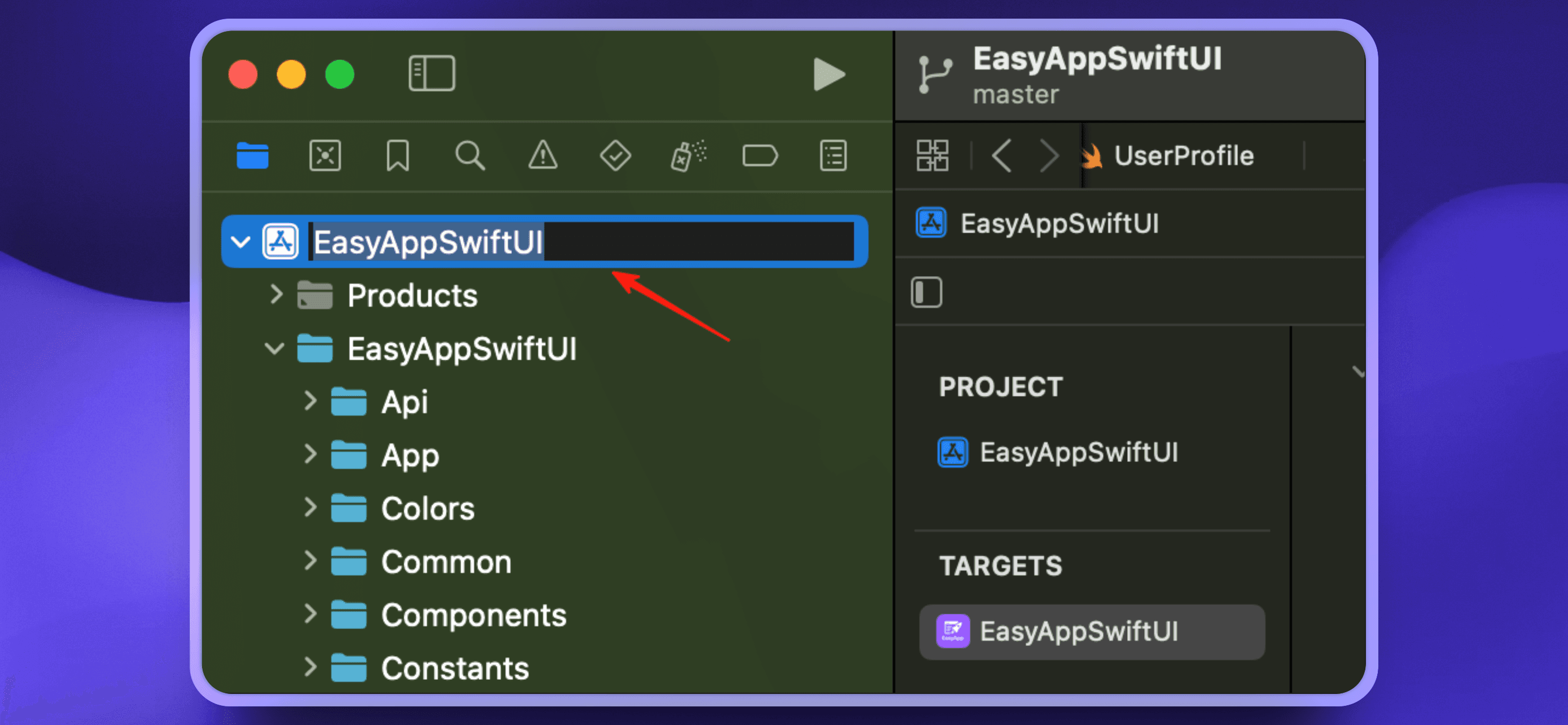
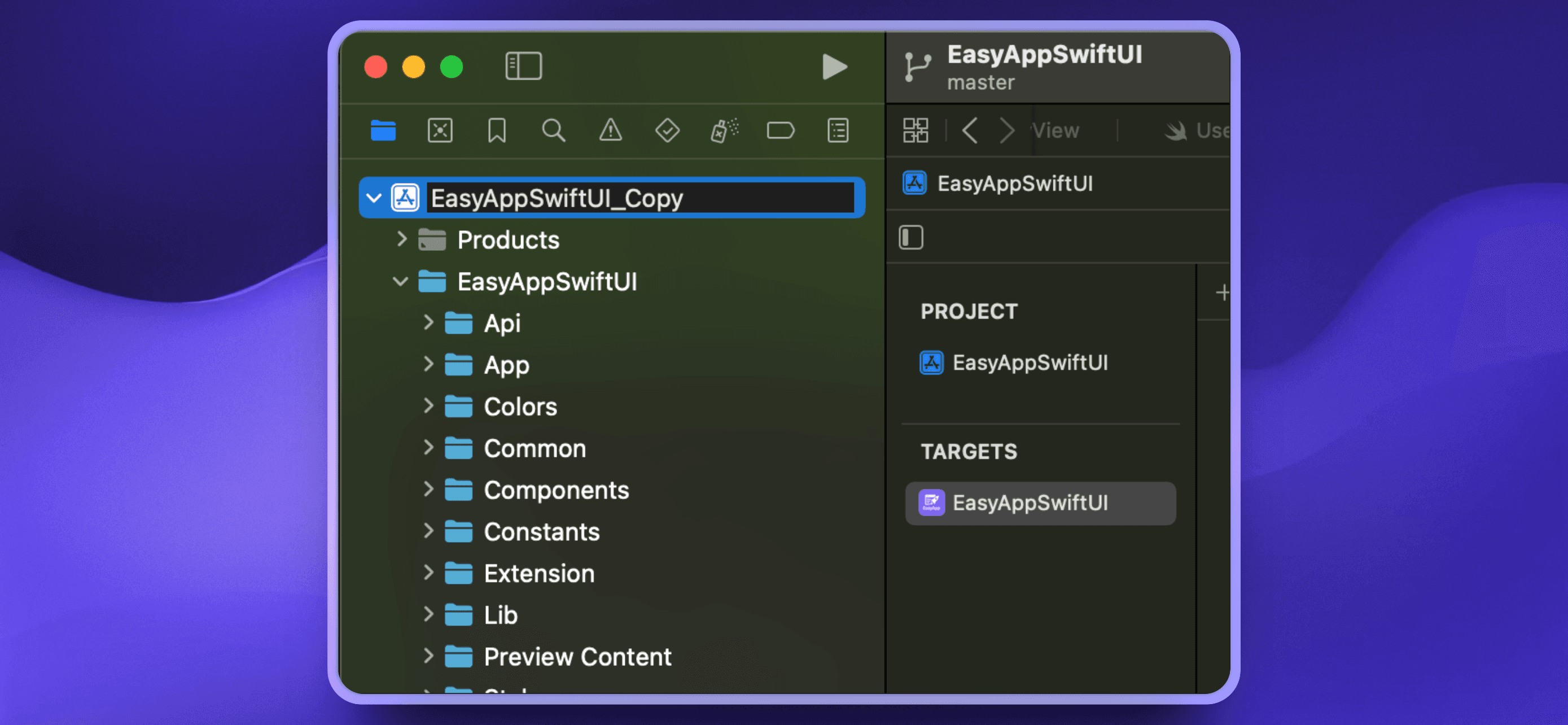
  • After selecting the project name, click again or press Enter to enter edit mode (as shown below)

edit_project_name2

  • Taking this project as an example, we modify it to EasyAppSwiftUI_Copy (as shown below), edit_project_name3

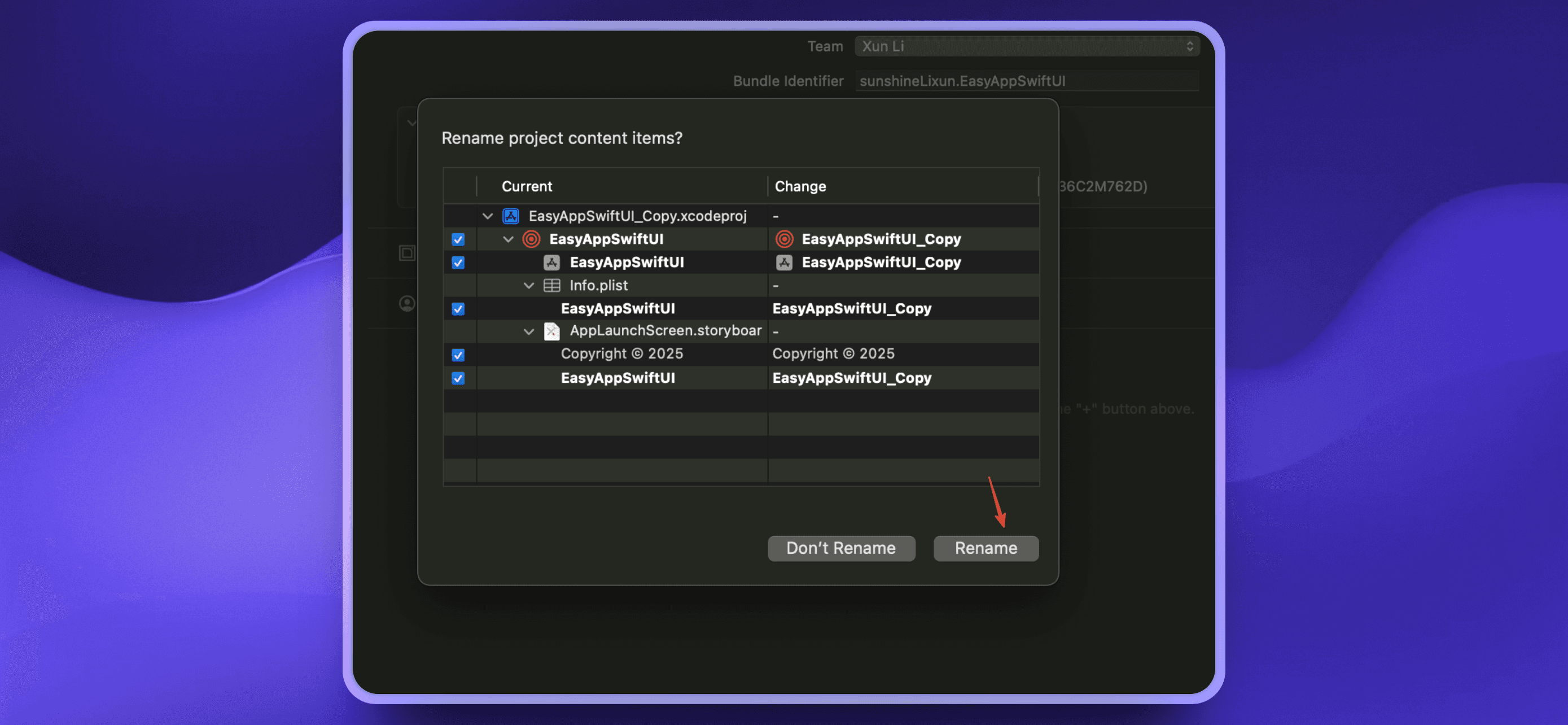
  • After modification, click/press Enter to complete the modification. A popup will remind you, click rename and continue.

edit_project_name4

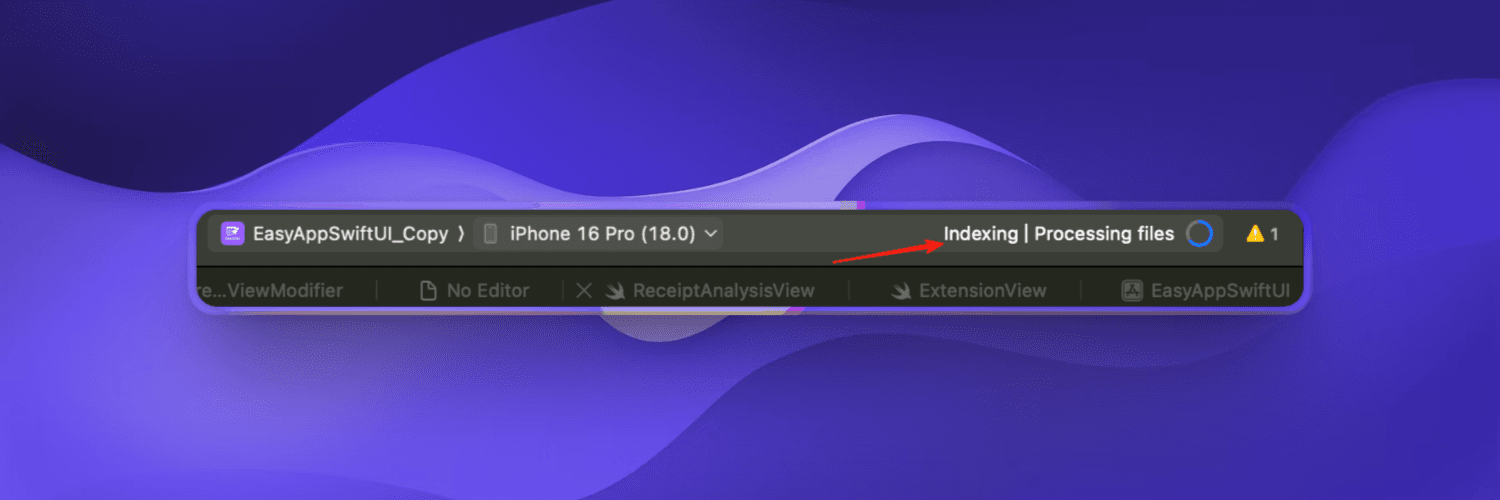
  • After renaming, Xcode will re-index the entire project. project_indexing

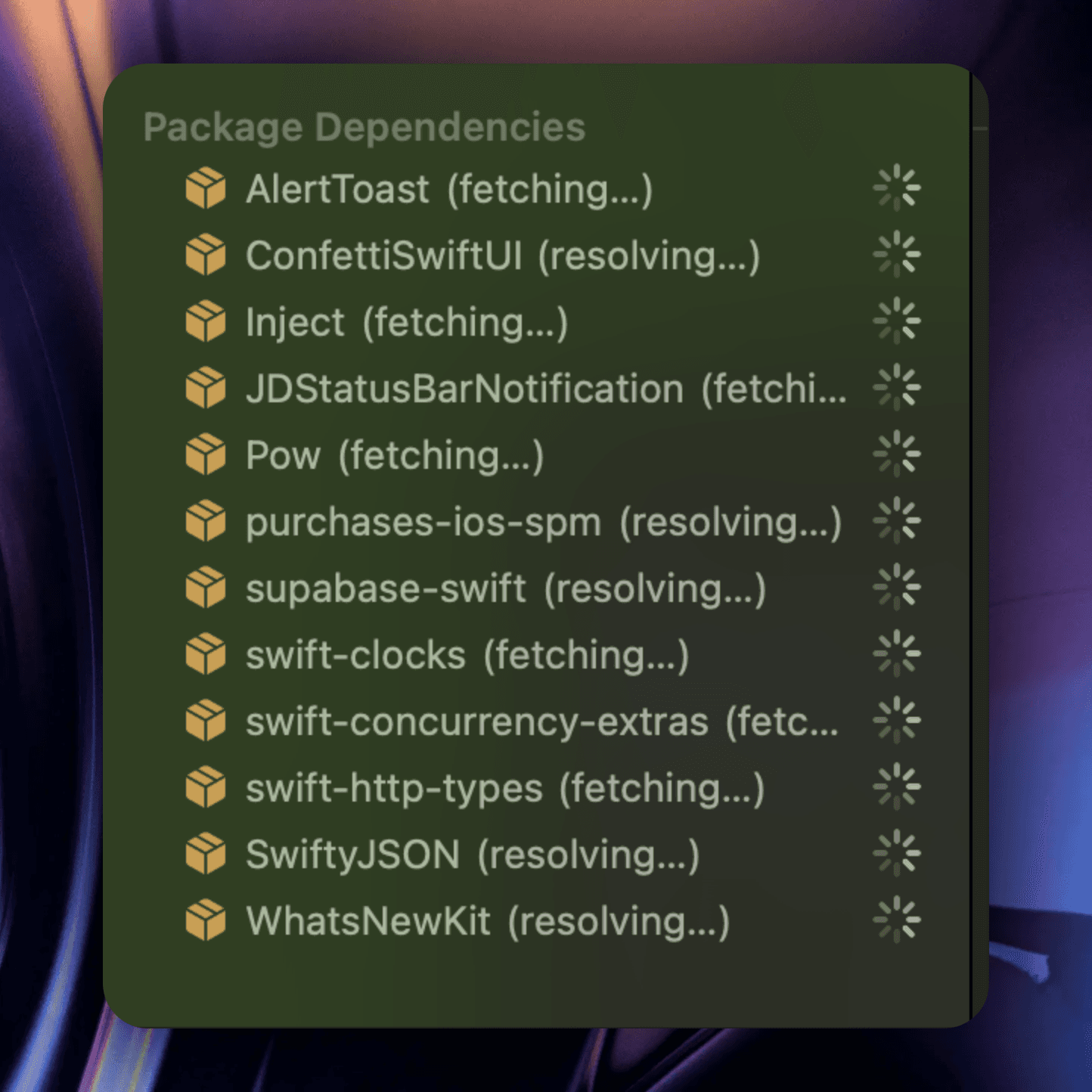
  • If we reopen the project, it will re-request all SPM dependencies. fetch_dependencies

5. Verify project runs normally

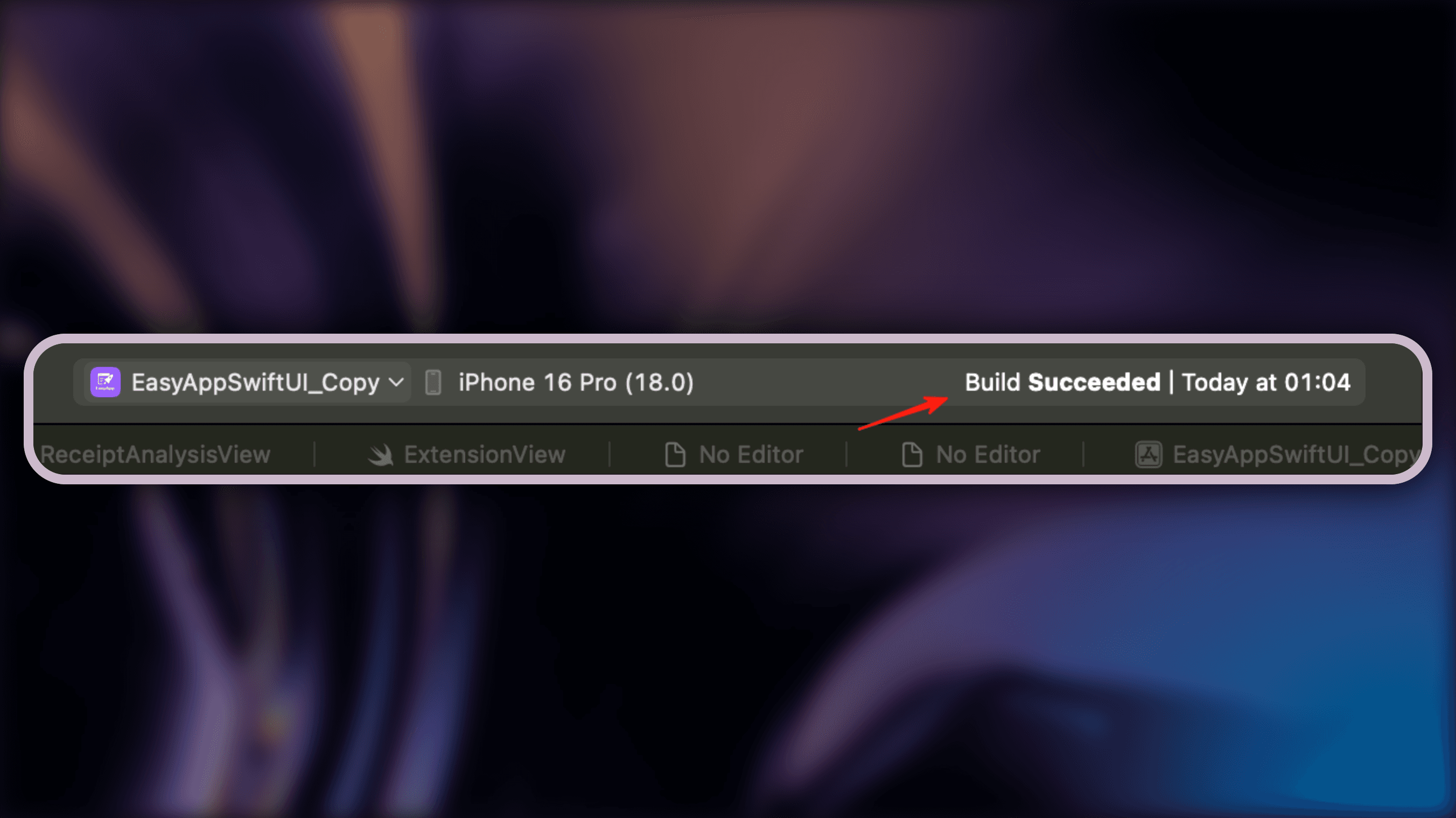
  • After you get the project, or if you performed step 4, it's recommended to execute Command + B to verify the project builds normally.
  • If everything is normal, you'll see a Build Success prompt.

build_success

Reminder

  • If project build fails due to dependency errors, it might be Xcode having issues during project renaming. Please try the following:
  • Execute Command + Shift + K to clean cache
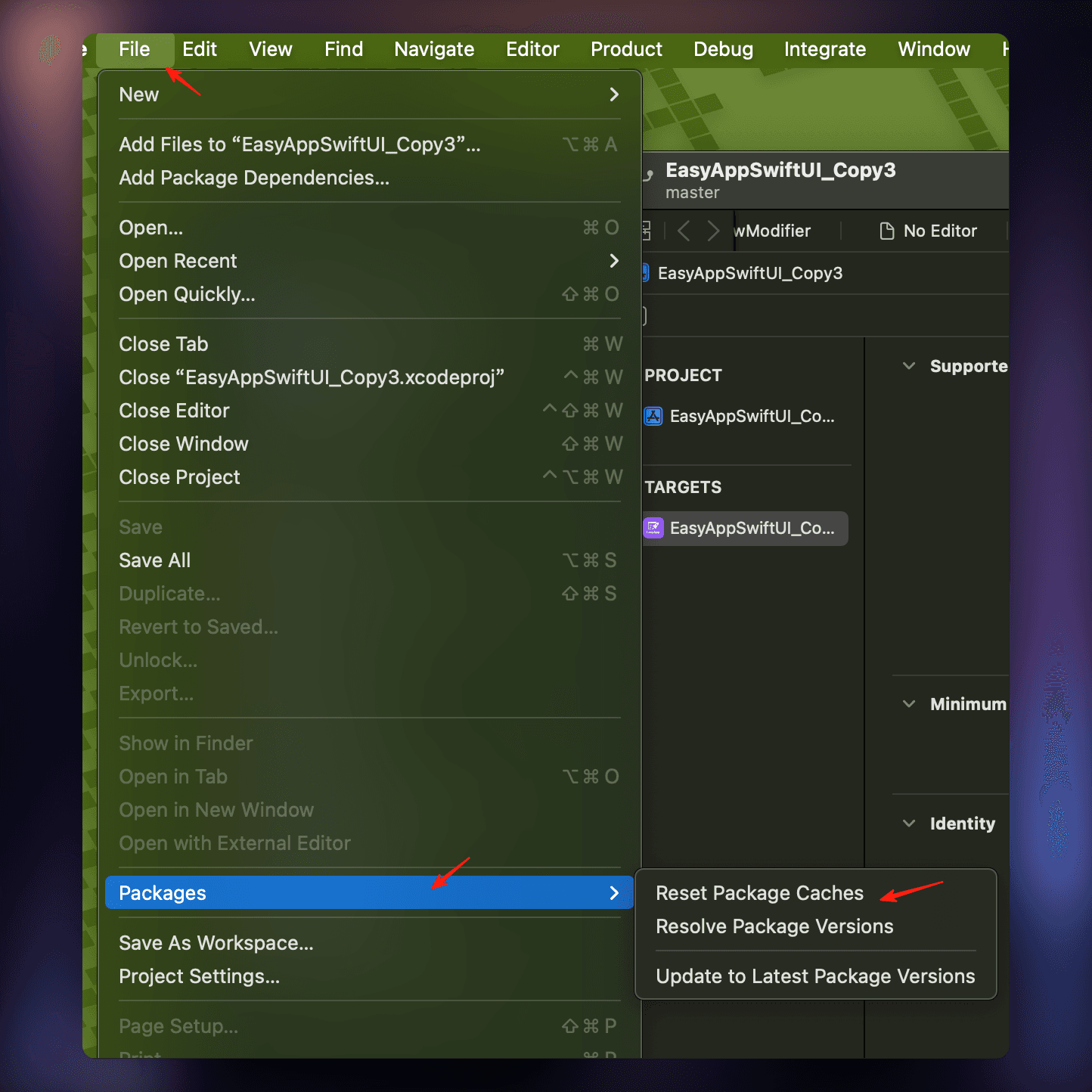
  • Execute File > Packages > Reset Package Caches reset_package_caches
  • Wait for Xcode to complete dependency download processing
  • If still not resolved, try completely exiting Xcode then restarting and executing:
  • Command + Shift + K to clean cache
  • File > Packages > Reset Package Caches
  • Allow/trust any popups that appear
  • If dependency errors still exist, your Package.resolved file might be corrupted. Please delete that file and let Xcode regenerate it. See this Stack Overflow issue
  • Generally, this situation won't occur. If you really encounter it and have tried all the above methods but still can't resolve it, please contact us

Reminder

If you can't find the main App after changing the project name, as shown below: notfindMain

If you encounter this situation, please follow the steps below, operate according to the arrows from top to bottom:

edit-s

6. Modify App name

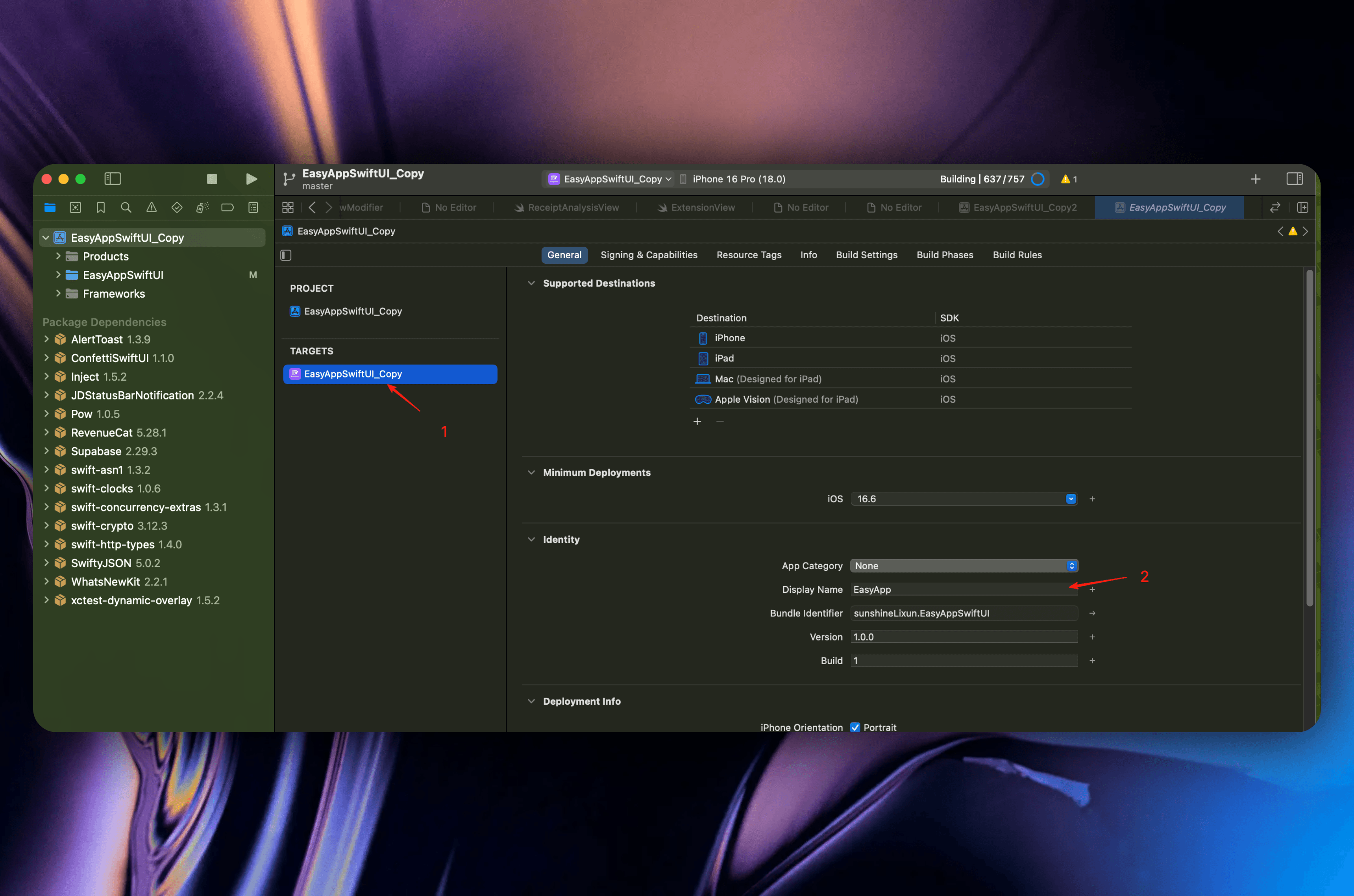
  • If all the above steps went smoothly, you can start modifying your App name (as shown below).
  • Select step 1, find Display Name, modify to your App name (step 2). For example, we change the App name to EasyAppCopy.

edit_app_name

Next, you need to configure how to connect to Supabase services.

Permissions Configuration (this step is optional)

The template enables some permissions by default to demonstrate related features. All permissions can be viewed here

delete-pre

If your App doesn't need a certain permission, please click the arrow icon to delete the corresponding permission.

Reminder

During Apple review, if your App requests a certain permission but doesn't use it, it may be rejected. Please verify once before launching.

Last updated on